


🌟 How to create a CyberDoll! 🌟
This tutorial contains only the basic information for creating and importing your CyberDoll. In the coming days, I will expand it with all the secrets and tricks to explain every detail of using VRoid Studio and prompt engineering. Thank you for your patience 🙌!
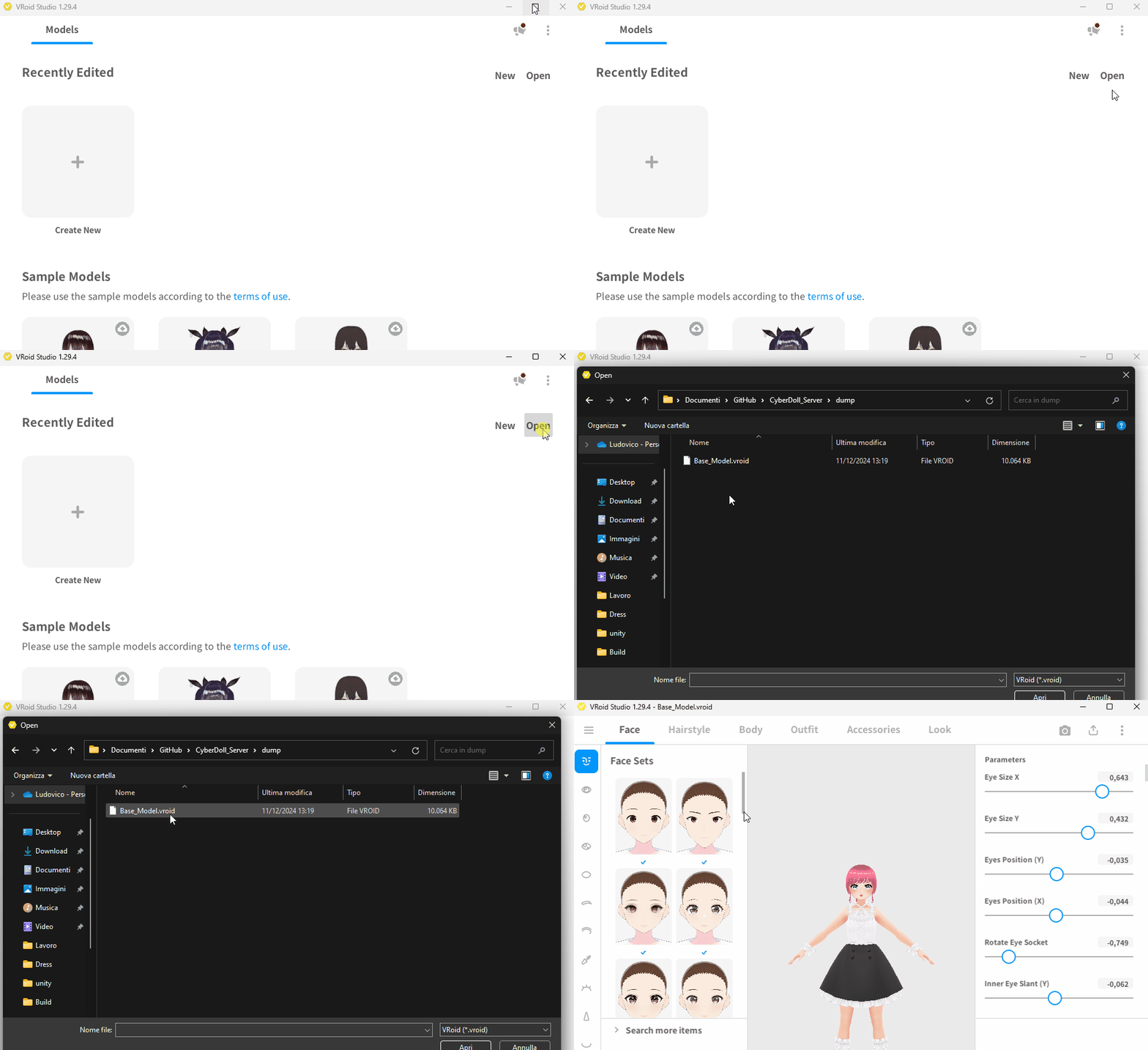
This is the main screen of VRoid Studio. To get started, click on "Open" and select the 'Base_Model.vroid'
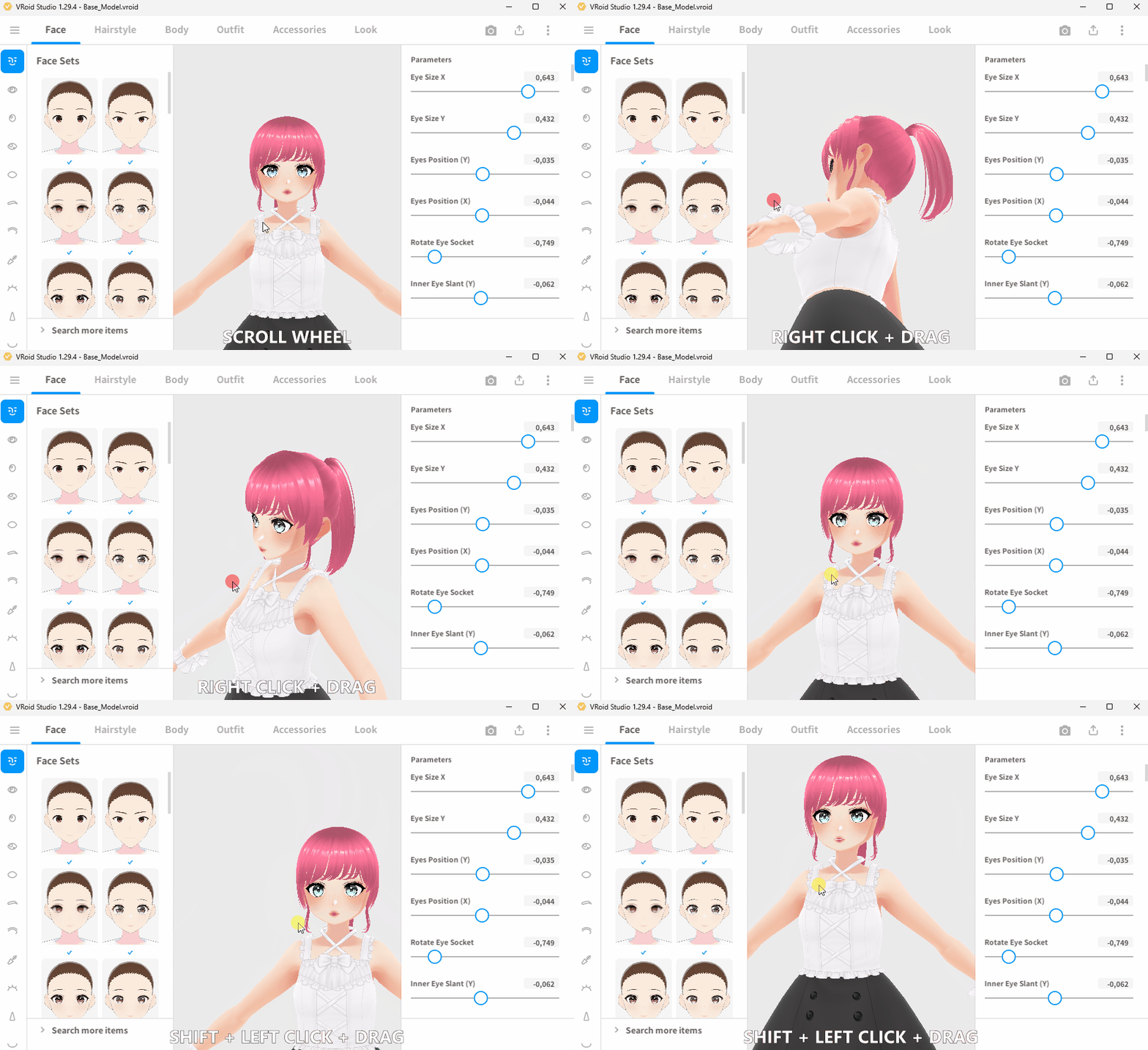
Basic Camera Controls in VRoid Studio:
Right Click + Drag: Rotate the camera to view your model from different angles.
Shift + Left Click + Drag: Pan the camera to move around the scene.
Scroll Wheel: Zoom in and out to adjust your view distance.
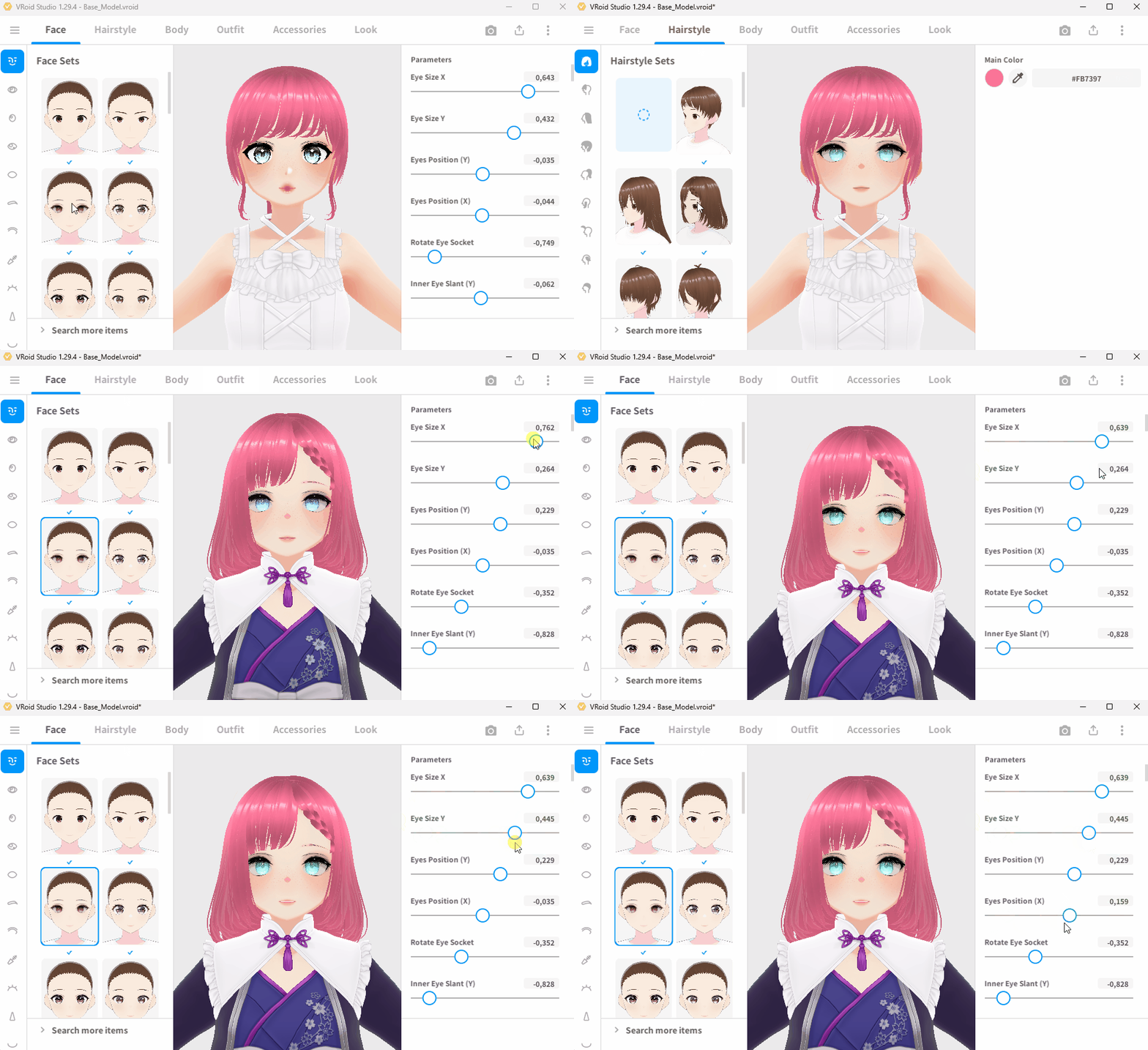
At the top of the screen, you can select a category to edit the model. Depending on the category selected, the left and right panels will adjust accordingly.
In the left panel, you'll find sub-categories (e.g., Face > Nose) along with VRoid’s presets for each sub-category. These presets allow you to quickly apply predefined settings.
The right panel contains sliders for adjusting the main category settings (e.g., Face > Eye Position), giving you fine control over your model’s appearance.
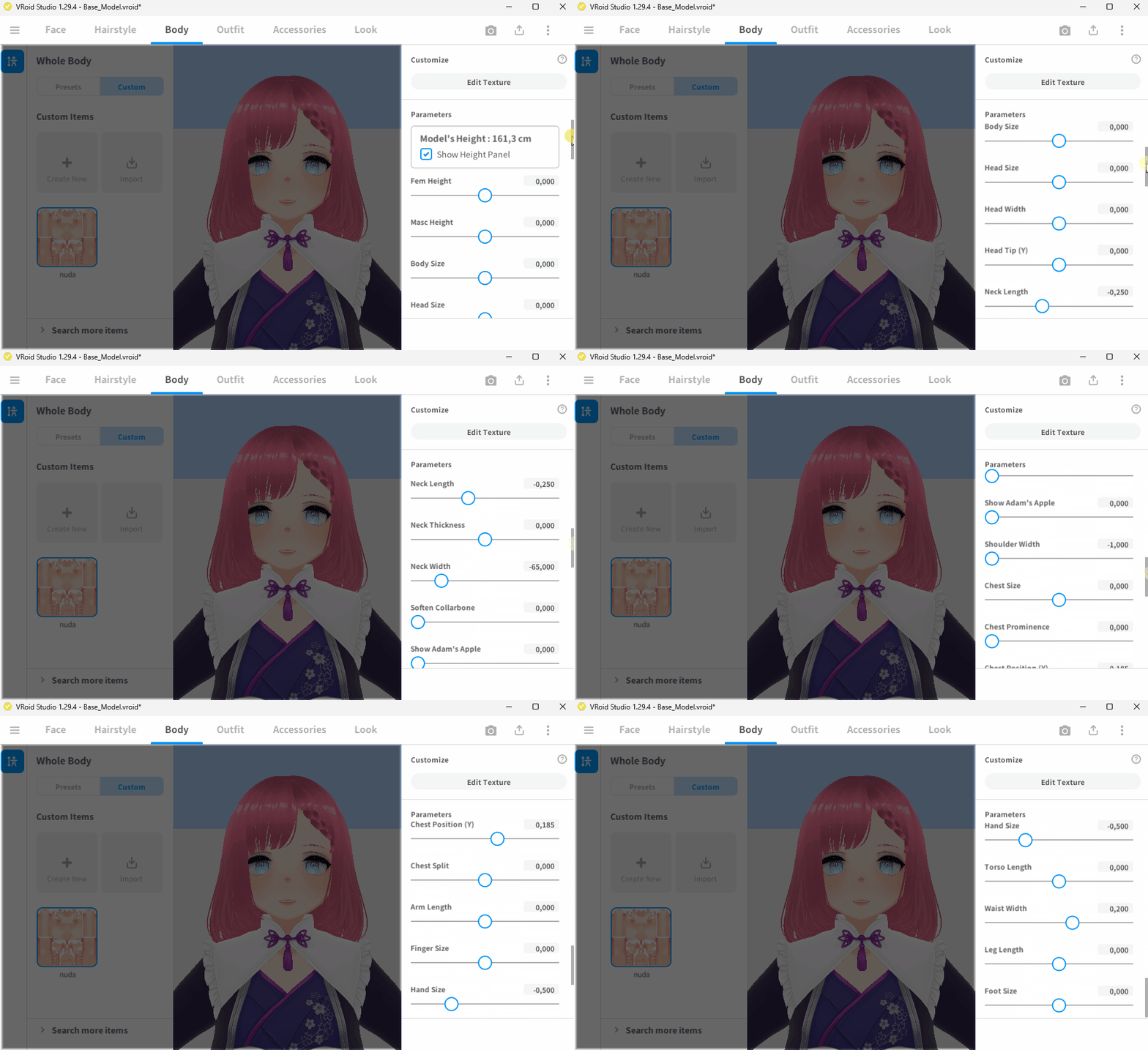
Very important: In the body category, you must not change the body sliders. This is because CyberDolls animations will only work with these sizes...
Don't worry about the chest size, as I will add a slider for it in CyberDolls.ai during the import process.
🌟 Export the CyberDoll! 🌟
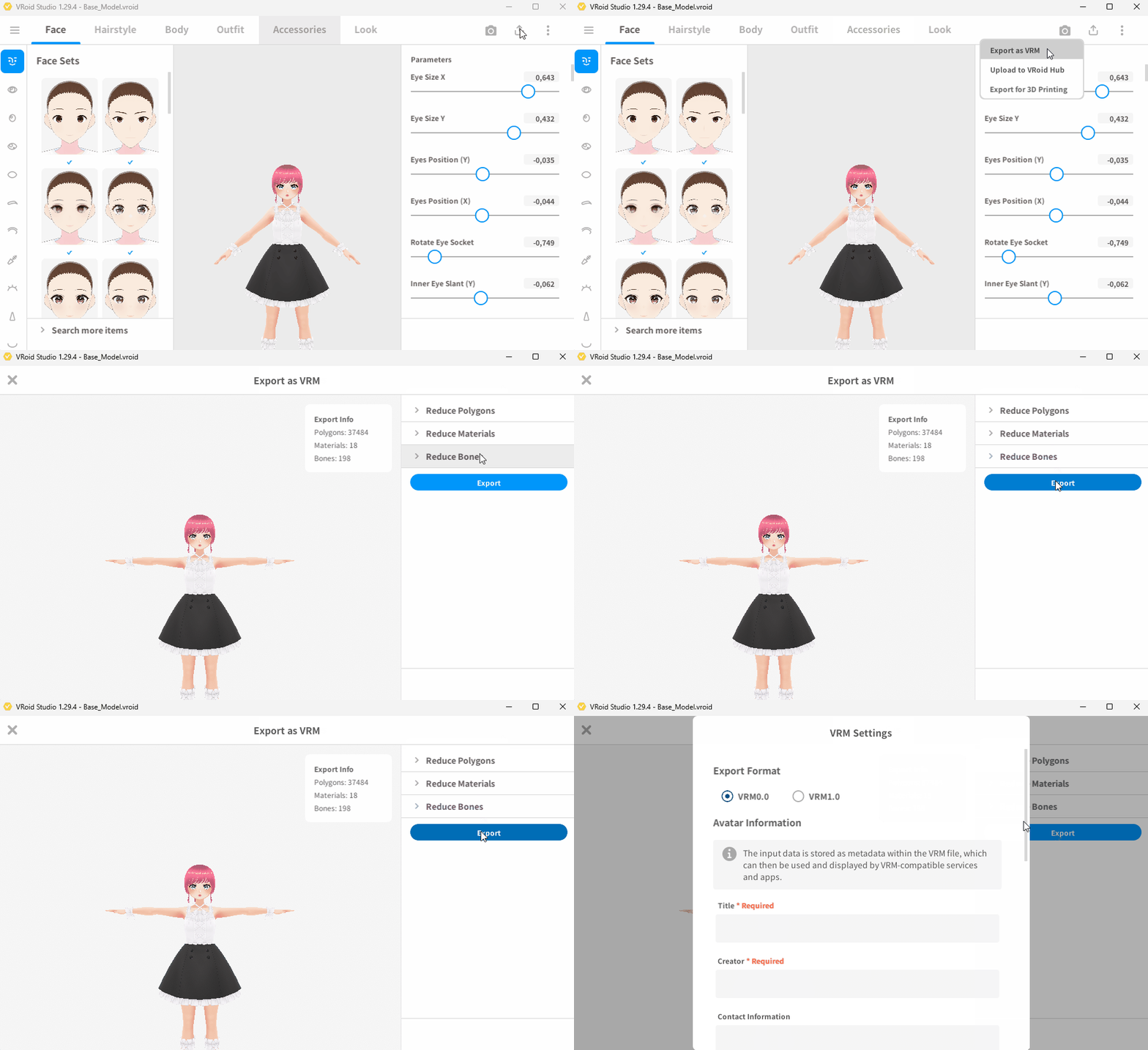
The export button in on top right of the window
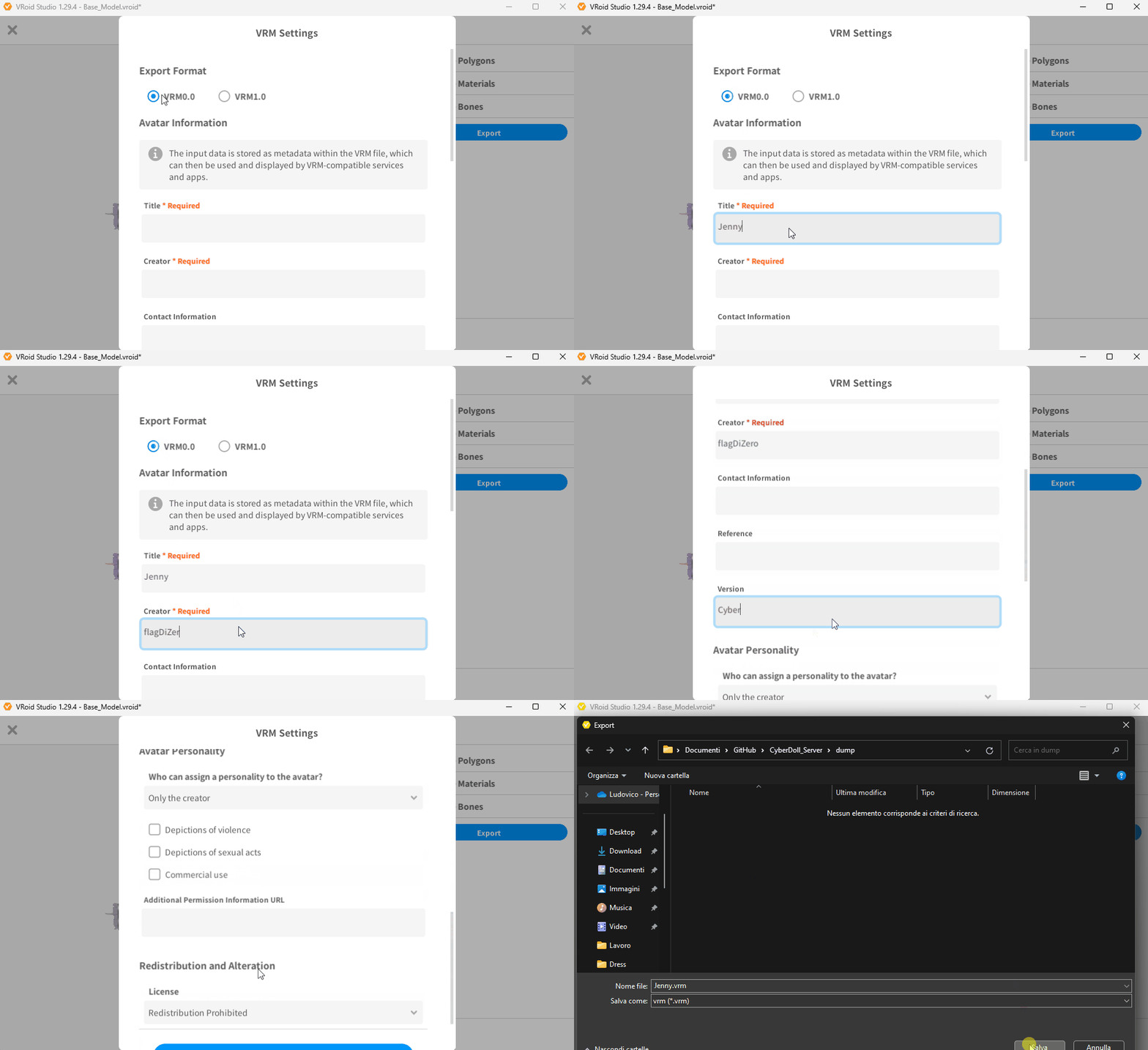
On export view make sure to follow these steps:
-
Select Vrm0.0
Insert CyberDoll name as Title
Insert your name as Creator
Insert 'CyberDolls' as Version
🌟 Import the CyberDoll on CyberDolls.ai 🌟
2. Click the **Create CyberDoll** button and select a VRM file.
3. Choose the previously exported VRM file and upload it.
4. After the upload is complete, enable **Expert Mode**.
5. Insert the prompt for your CyberDoll.
- Use the name you’ve chosen for her in your descriptions.
- Refer to the user as "Bob" when crafting the CyberDoll's personality or dialogue.